Parent App Guide
Parents can stay connected with school through the app — notices, events, school updates and more.
Parents log in with their own username and password created from the dashboard. They receive direct notices from the school and stay updated on school activities — without visiting the school.
What parents can access
Notices and voice notices
Read notices from the school and listen to direct voice notes sent to you.
Events calendar
See upcoming events, holidays and PTM dates.
School announcements
Read general circulars and announcements from the school.
Child dashboard
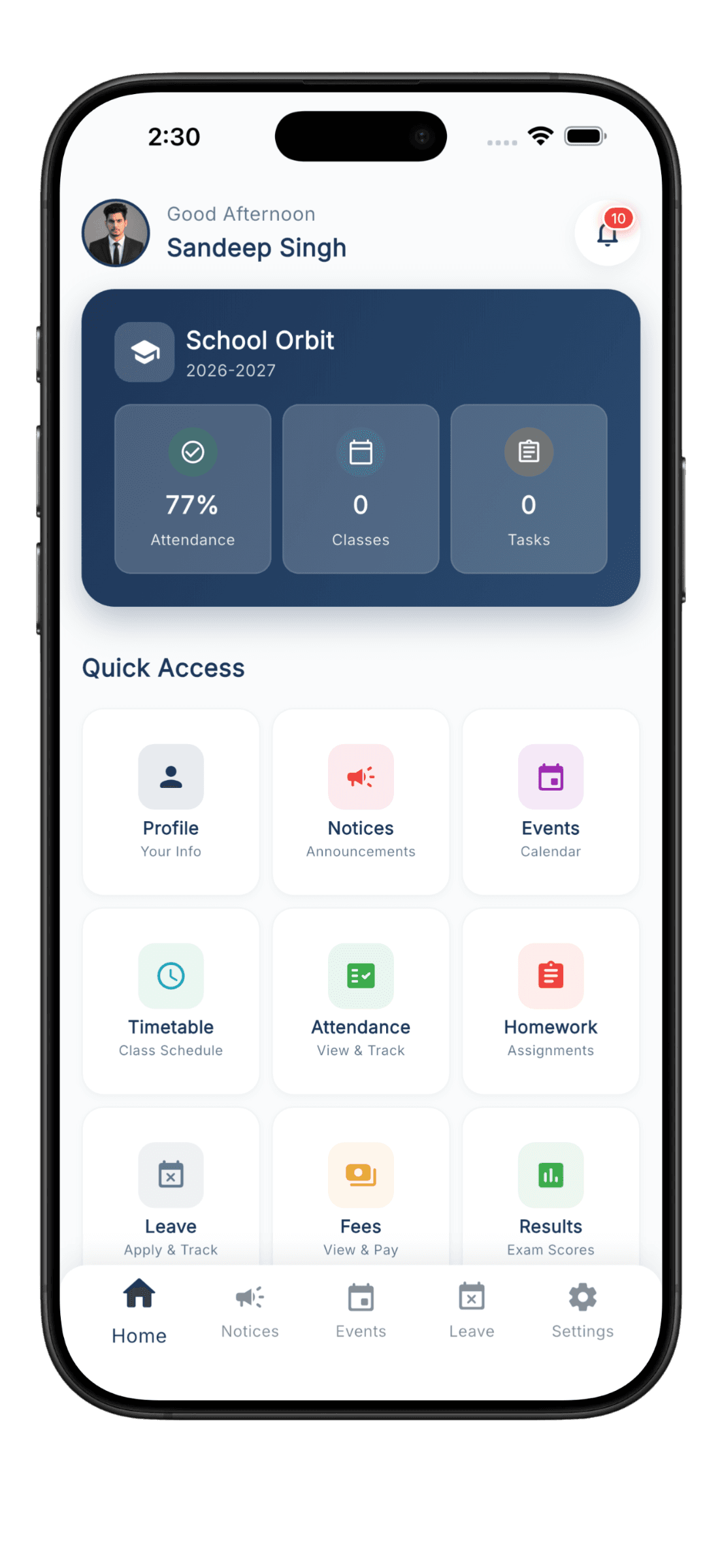
An overview card for each child on your home screen.
Inside the parent app
How a parent signs in
- 1
The school creates the login
The admin creates the parent's username and password from the web dashboard under Students → Parent Login IDs. Each parent gets their own credentials. - 2
Install the app
Download School Orbit from the Play Store or the App Store. See Install the app. - 3
Sign in
Open the app and enter the username and password the school gave you. If you do not have them, contact your school admin. - 4
Done
You land on the home screen with the latest notices and updates.
Bottom navigation
Parents see these tabs in the app:
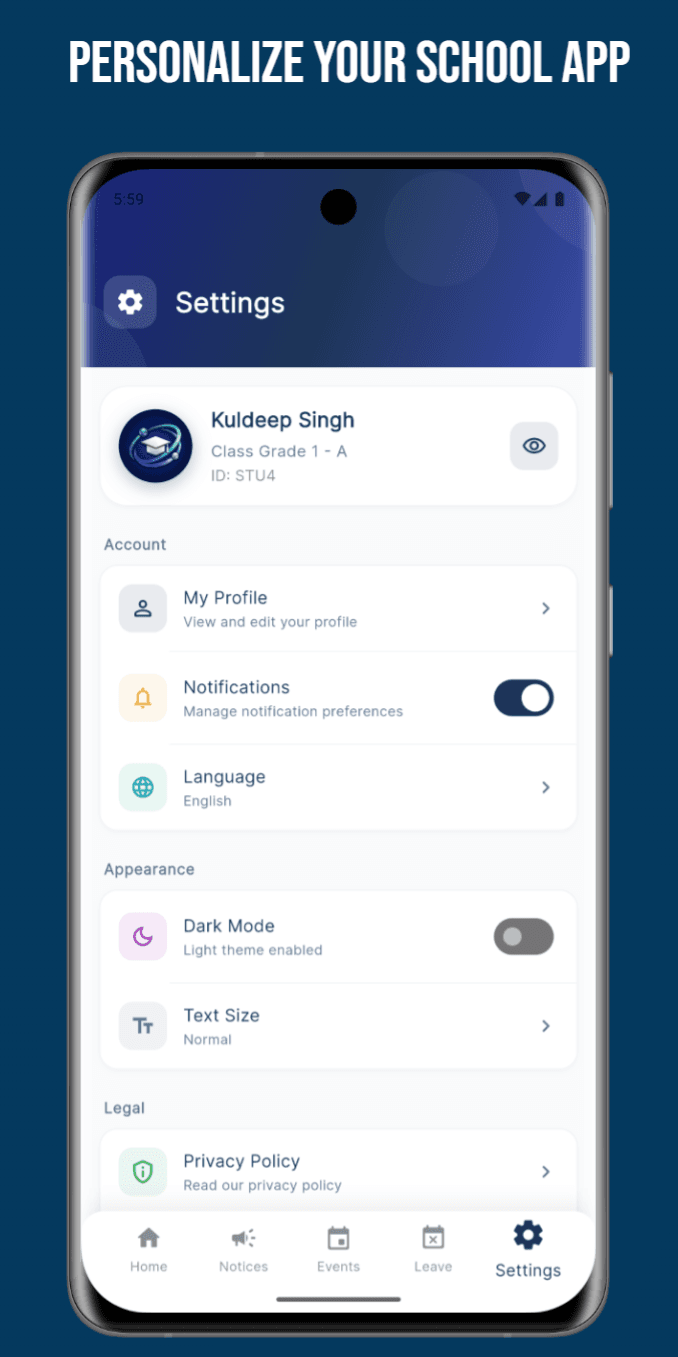
HomeNoticesEventsSettings
Multiple children
A parent with two children in the school can switch profiles inside the app, so you can follow updates for both from one place.